Ideas
What an AI may do on a client site
Seven switches in ReDock Web turn a vague worry into a policy you can read, and every refusal is recorded.
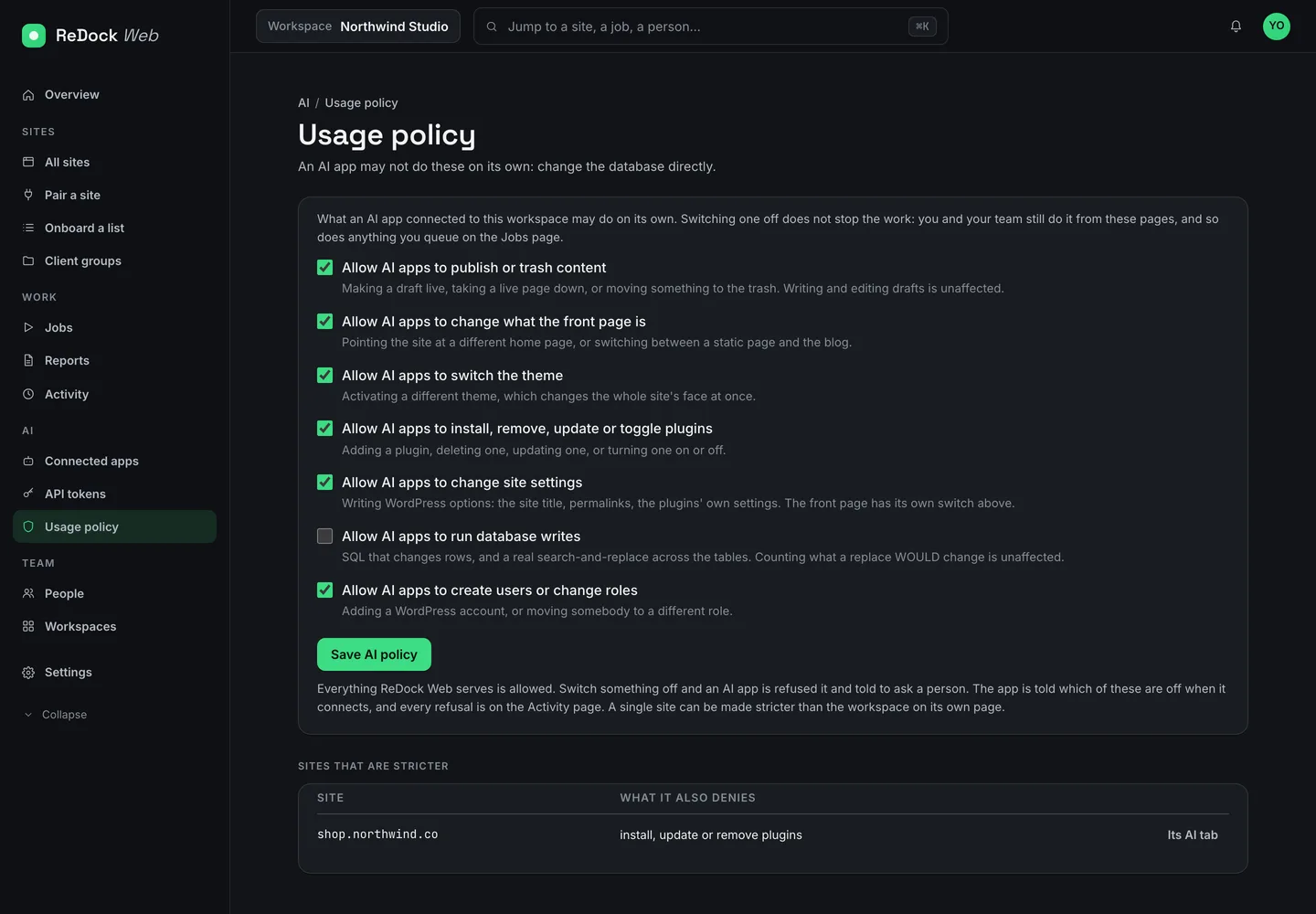
The first question an agency asks about an AI assistant is usually “can it do the job”. The one that matters more arrives a week later: what may it do without asking? A person who joins a studio is told this on day one. They can draft a page, they should ask before switching a theme, and they will be walked out for deleting a client’s users. Nobody writes that down for a program, and then everyone is surprised when it does what it was allowed to do.
ReDock Web makes that conversation concrete. There are seven switches on the Usage policy page. Each one is a sentence that starts “Allow AI apps to”, and each one covers a kind of change that a client notices or that is hard to take back:
- publish or trash content
- change what the front page is
- switch the theme
- install, remove, update or toggle plugins
- change site settings
- run database writes
- create users or change roles
Everything ReDock Web serves is allowed until you say otherwise. Turn a switch off and an AI app that asks for that action is refused and told to ask a person. Nothing else changes. You and your team still do the same work from the same pages, and a job you queue still runs. The switch is about who may act unasked, not about what the product can do.
Three piles
We find it useful to sort every action an assistant could take into three piles.
Unasked. Reading, in all its forms: listing plugins, reading a post, checking which updates are waiting. Drafting too, because a draft is invisible to visitors and easy to throw away. While a switch stays on, its action sits in this pile for the whole workspace.
Ask first. Anything that changes what a visitor sees or what the site runs. In practice that is the seven switches, and the two we would flip first are publishing and database writes. In the picture above, database writes is the one turned off. Some tools carry their own question regardless of policy. In the build’s parity run of 3 September 2026, a delete sent without the confirm flag was refused with the message “confirm: true is required”, followed by “this deletes plugin files on a LIVE site”. Updating every plugin, replacing text across the database and deleting a plugin each ask the same way, and the policy switch stands in front of them as a second wall.
Refused and written down. Some things are never offered, at any level. Running arbitrary code against a live site is one. The same run records the door’s answer to a php_eval call: “arbitrary code against a live site is not a thing ReDock Web offers, at any permission level”. Reading and writing the site’s own files is another. Those refusals are not a policy you set. They are the shape of the product.
Workspace-wide, with one exception per site
A policy is set once for the workspace, and every site in it inherits it. A site can add denials of its own on its AI tab; it cannot remove the workspace’s. In the picture, a shop denies plugin installs, updates and removals on top of the workspace rule, and the table under the switches says so. That is for the one client who has asked, in writing, that nothing on their shop changes without a call. You do not run a separate workspace for them. You make their site stricter and leave the rest alone.
The first switch is consent
Before any of this applies, an app has to connect, and the connection is where the level of trust is set.
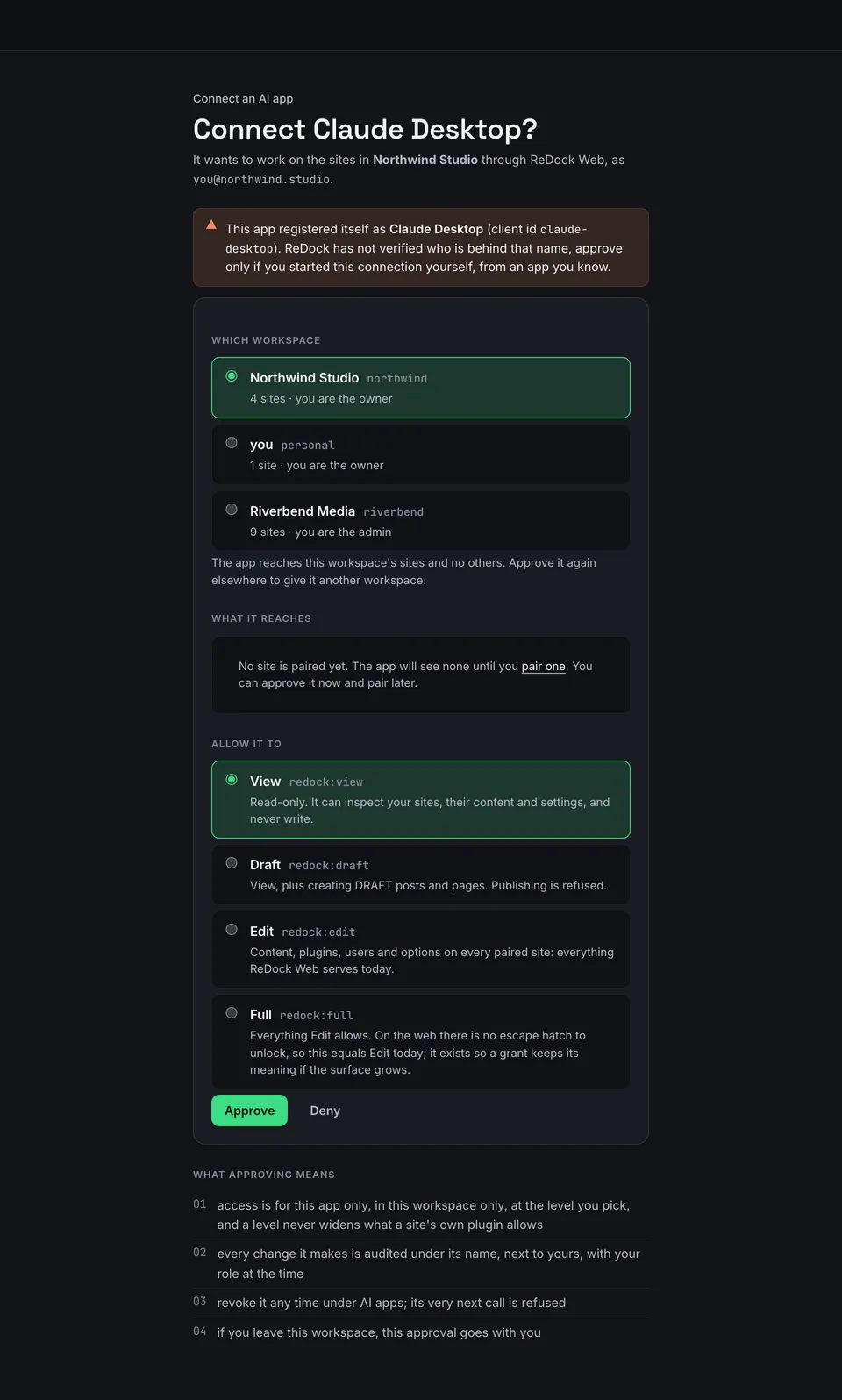
The consent screen names the app as the app named itself, and says plainly that ReDock has not verified who is behind that name. It lists the workspace, the sites the app would reach, and four levels: View, Draft, Edit and Full. View is pre-selected. Under the button, four lines say what approving means. The access is for this app only, in this workspace only, at the level you picked, and a level never widens what a site’s own plugin allows. Every change is recorded under the app’s name, next to yours, with your role at the time. Revoke it any time and its very next call is refused. If you leave the workspace, the approval goes with you.
That last line is easy to skip and worth reading twice. An approval belongs to a person in a workspace, not to the workspace. When somebody leaves, their apps leave with them.
What the record looks like
A policy nobody can check is a hope. Every refusal lands on the Activity page with the code it was refused under and what was asked, counted for the last fourteen days. The changes that did happen sit below with who, which app, which site, the level at the time and how it ended. Records are kept for 400 days. Only changes are recorded; reads are not.
Revocation is immediate. The door transcript from 2 September 2026 records that after a revoke under Connected AI apps, “the still-valid access token is refused on its NEXT call”, and the note beside it reads “revocation bites now, not at the next refresh”. The grant is marked revoked with a timestamp rather than deleted, so the activity trail keeps pointing at it. You can still read what an app did last month after you have shown it the door.
Write the policy before you connect anything
The switches make a policy legible. They do not write it. Our suggestion is to do that first, one sentence per switch, with a client’s name on any line where that client has an opinion. Then open Usage policy and make the page match the sentences. The app is told which switches are off at the moment it connects, so it will not spend your afternoon asking for things you have already decided.
If you look after one live site, ReDock Web is free for it. Create a workspace, connect an app, and read the four lines on the consent screen before you press Approve. The door itself is described on the product page, and the switches on the ReDock Web page.
Questions
Does switching one off stop my team from doing it?
No. The switches apply only to AI apps connected through the door. People sign in and do the same work from the same pages, and jobs queued from the Jobs page run as before.
Is a refusal recorded?
Yes. Every refusal is on the Activity page with the code it was refused under and what was asked, counted for the last fourteen days. Changes are kept for 400 days.
Can one client’s site be stricter than the rest?
Yes. A site can deny more than the workspace does on its own AI tab, and the Usage policy page lists every site that does. A site cannot be looser than its workspace.